Book mockup generation
Book mockups play an important role in the process of creating and promoting a book. They allow authors, designers, and publishers to see how the book will look in reality, taking into account its size, cover materials, and textures. This provides a more accurate representation of the final product before production, which is particularly important when making design decisions.
Visual models of books also play a key role in marketing campaigns. They help create attractive promotional materials, such as posters or banners, which grab attention and improve how the book is perceived by its audience. Additionally, mockups help authors and publishers quickly choose the optimal design, material, and cover type, and assess which option will be most appealing to the target audience.
Mockups also allow the book to be presented in the most professional manner, which is useful when presenting it to potential buyers, partners, or critics. This speeds up the design approval process, and all participants—from editors to authors—can agree on the final version more quickly and easily.
Creating mockups is also important for different types of publications. For example, they help adapt the design for hardcovers, paperbacks, or eBooks. Mockups add realism, allowing one to understand how the book will look in the hands of a reader or on a bookshelf.
Finally, mockups help the author convey the atmosphere of the book through its visual elements, enhancing the perception of the work and making it more appealing to a wide audience.
The book visualization tool (mockups) is available in Author Tools > Book Visualization. https://app.metranpage.com/author-tools/book-mockup-generation
Book Visualization Creation Scenarios (Mockup)
1. Automatic Mode for Mockup Creation
- Upload your cover design.
- Activate the AUTO mode for mockup creation, this option is selected automatically.
- Click the "Generate" button to start the process.
Click on the image to enlarge

2. Custom Mode for Mockup Creation
- Upload your cover design.
- Deactivate AUTO mode for mockup creation by clicking the "Describe it yourself" button. A field for entering a custom request will appear.
- Specify your request and click the "Generate" button to start the process.
Click on the image to enlarge

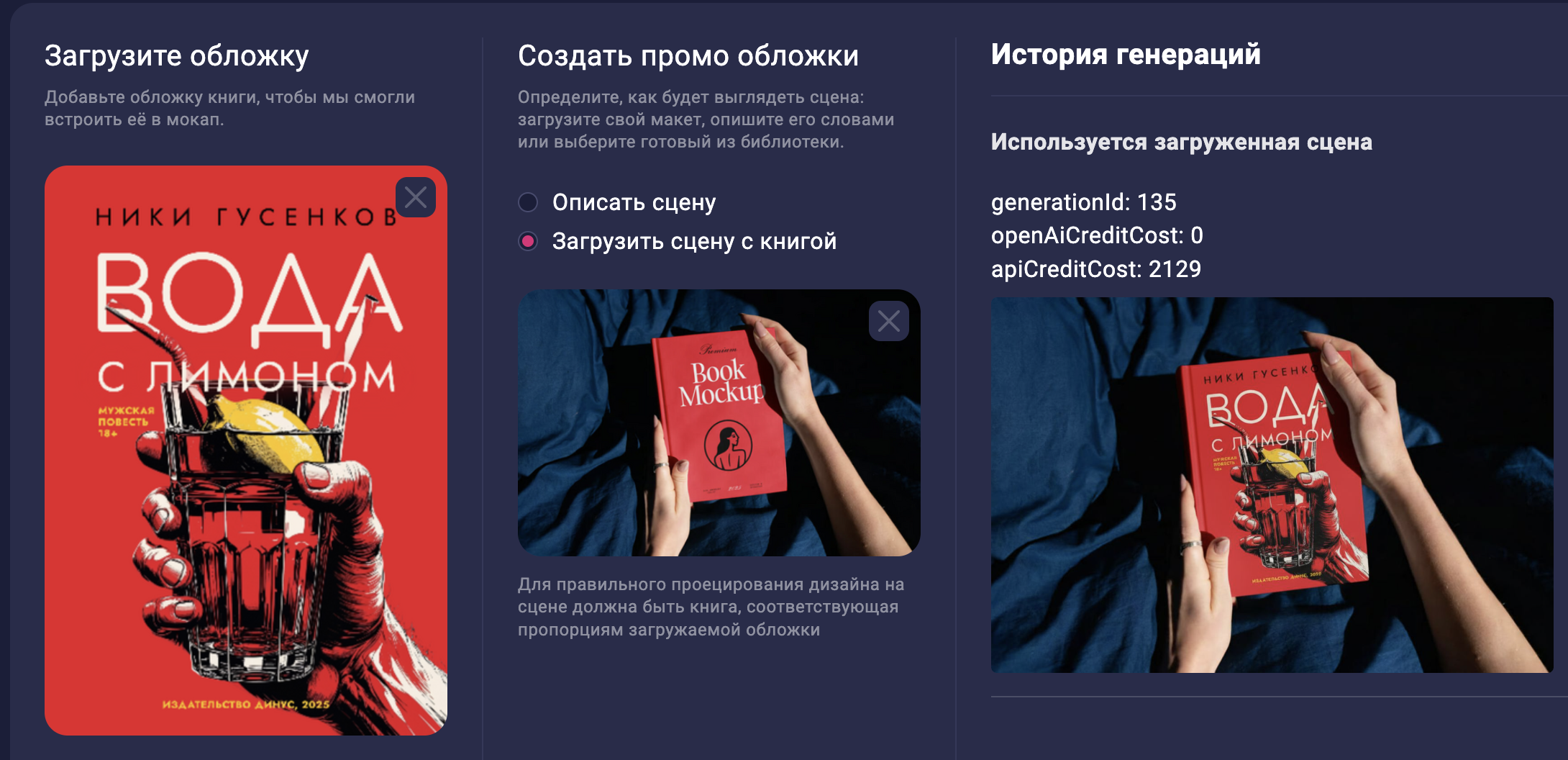
3. Using a Ready-Made Scene for Mockup Creation
- Upload your cover design.
- Activate the "Upload scene with book" mode. Upload the image with the book, keeping in mind that the proportions of the book should match the proportions of the uploaded cover.
- Click the "Generate" button to start the process.
Click on the image to enlarge
Additional Features
You can use any ready-made book visualizations (mockups) on the main page of the service, in the mockups section, for your visualization: https://app.metranpage.com/book-mockups
Click on the image to enlarge
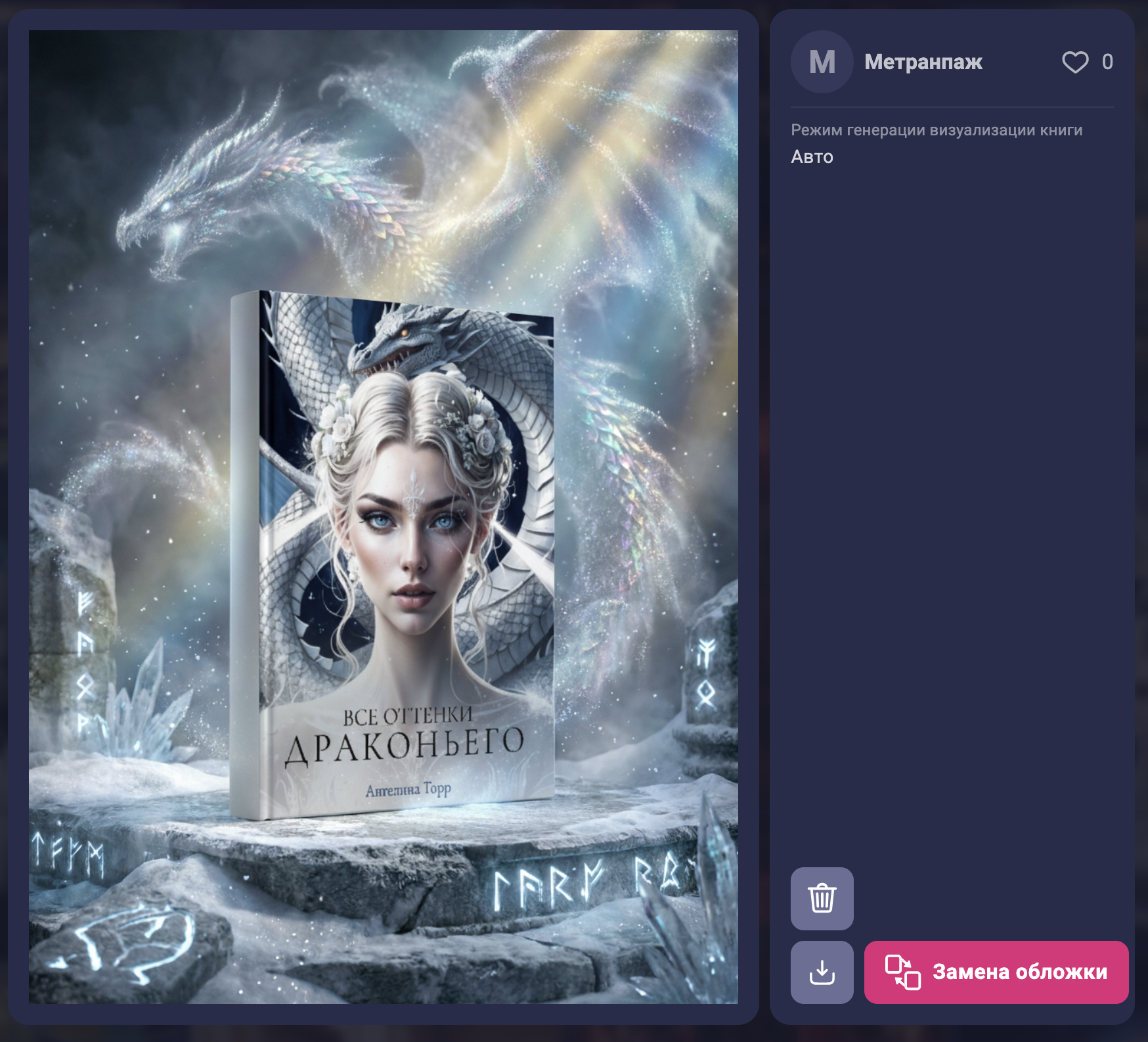
After clicking the "Replace cover" button, use the second mockup creation scenario "2. Custom Mode for Mockup Creation."